Productivity
How to Take Notes During a Phone Call (Record, Transcribe or Write)
Updated · 10 min read
The easiest way to take notes during a phone call is to record it with everyone’s permission and work from the transcript afterwards, so you can listen instead of typing. If you can’t record, use a short template and capture only five things: numbers, dates, names, commitments and the next step. This guide covers consent, the recording options on iPhone, and a note method that works with nothing but a pen.
Before you record: consent basics
Recording laws generally come in two flavors. One-party consent means you can record a conversation you are part of without telling the other person. All-party (often called two-party) consent means everyone on the call has to agree.
United States
Federal law is one-party consent, and most states follow it. But some states require everyone’s consent. According to the Reporters Committee for Freedom of the Press’s Reporter’s Recording Guide, the all-party states are primarily California, Delaware, Florida, Illinois, Maryland, Massachusetts, Michigan, Montana, New Hampshire, Pennsylvania and Washington, with nuances (Michigan’s rule, for example, may apply mainly to third parties recording). Connecticut and Nevada require all-party consent for phone calls specifically.
Calls across state lines are the tricky part. Courts don’t agree on whose law applies, so the practical rule is to assume the stricter state’s law applies. If you’re in Texas (one-party) calling someone in California (all-party), act as if you’re in California.
Outside the US
- UK: Recording a call for your own personal notes is generally treated differently from a business recording calls. Businesses usually need to tell callers and have a lawful basis under data protection law (UK GDPR).
- EU: A recording of a person is personal data under the GDPR. Businesses need a lawful basis and must inform people; national laws add their own rules, and some treat secret recording strictly.
- Canada: Generally one-party consent under criminal law for people who are part of the conversation, but organizations collecting personal information (for example, recording customer calls) have privacy-law duties to tell people why.
"Before we start — is it OK if I record this call? It's just so I can take accurate notes and not miss anything. I won't share the recording outside [my team / this project]."

[Wait for a clear answer.]

"Great, thanks. Just so it's on the recording: [Name], you're OK with me recording this call?"

If they say no:
"No problem at all — I'll take notes by hand instead."

For calls with more than one other person:
"Is everyone OK with me recording? If anyone would rather not, just say so and I'll stop."
Getting the “yes” on the recording itself means you have a record of consent if anyone asks later. If someone hesitates, don’t push — stop recording and switch to the handwritten method further down.
How to record a phone call on iPhone
Option 1: Built-in call recording in the Phone app
Since iOS 18.1, iPhone can record calls natively in some countries and regions. According to Apple’s support guide (as of November 2026), it works when you’re talking to one other person, and it is not currently available in the European Union and several other countries, including Russia, Saudi Arabia, South Africa, Turkey and the UAE.
Check availability
Apple asks you to check its iOS Feature Availability page for your language and region, and to make sure the other person is willing to be recorded.
Start the call
Open the Phone app and make (or answer) the call.
Tap the record button
During the call, tap the More (•••) button, then Call Recording. Both people hear an audio notice that the call is being recorded. Still ask for consent — the notice is not the same as agreement.
Stop
Tap the stop button or just hang up. The recording is saved automatically to a Call Recordings folder in the Notes app.
Read the transcript
Open the note and tap the recording. In supported regions and languages you get a transcript with each speaker identified; it may take a moment to appear. Apple notes you should check it for accuracy before relying on it.
Save or share the audio
From the transcript view’s More menu you can Copy Transcript, Add Transcript to Note, Save Audio Files (to Files) or Share Audio. Deleting the audio also deletes the transcript.
If you don’t see the record button, the feature may be off (Settings → Apps → Phone → Audio Call Recording), or it may not be available where you are.
Option 2: Speakerphone and a second device
Put the call on speaker in a quiet room and record with a second device: another phone, a laptop, or a recording app. This works anywhere and with any phone, but quality depends on your speaker volume and room. Keep the recorder 30–50 cm from the speaker and don’t type next to it. Announce the recording yourself, since nothing will play a notice for you.
Option 3: VoIP and video calls (Zoom, Teams, Meet, FaceTime)
If the “phone call” can be a Zoom, Teams or Meet call, use the app’s own recording (it usually notifies participants) or record on your device. See how to record and transcribe a Zoom meeting for the details. Apple’s guide also says you can record FaceTime audio calls with the same feature.
| Method | Audio quality | Transcript | Notifies the other person? | Limits |
|---|---|---|---|---|
| Phone app call recording | Clean, both sides | Yes in Notes, select regions and languages | Yes, automatic audio notice | One-to-one calls; not in the EU and some other countries |
| Speakerphone + second device | Fair to good; depends on room | Depends on the app you record with | No — you must tell them | Needs a quiet room and a second device |
| Zoom / Teams / Meet recording | Good | Often, depending on plan and settings | Usually shows a recording notice | Both people must join the video app |
| No recording (notes only) | — | No | Not needed | You will miss details; use the template below |
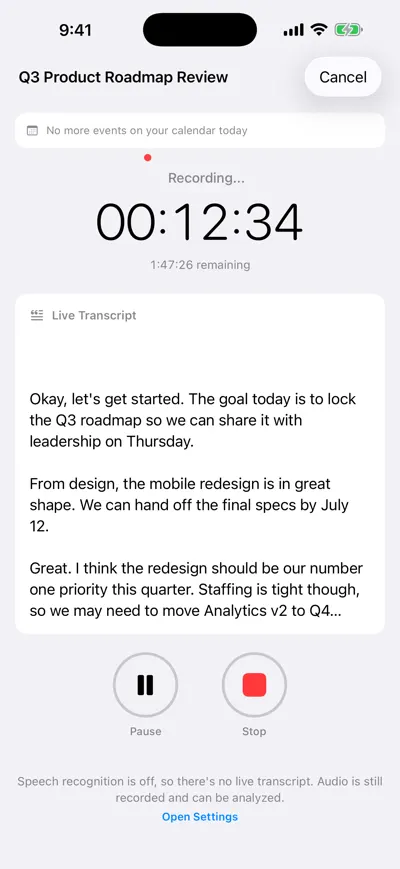
Recording on speakerphone
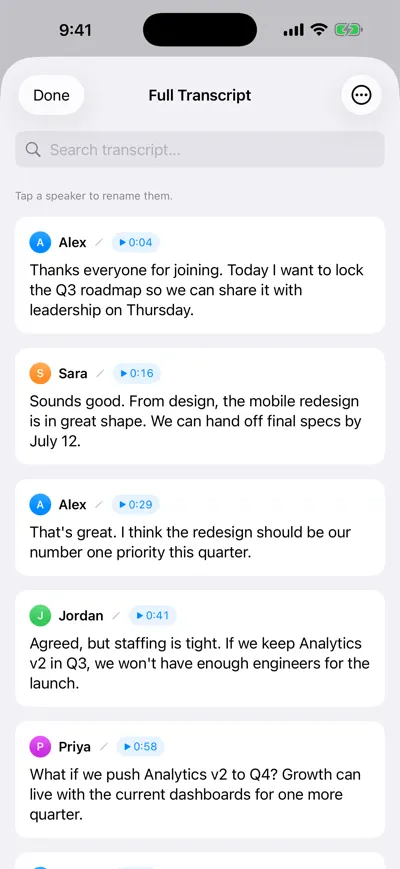
Transcript with speakers
How to take notes during a call you can’t record
Plenty of calls can’t or shouldn’t be recorded. The trick is to write less, but write the right things: anything with a number, a date, a name or a promise.
Prepare a header before you dial
Write the name, company, date, time and the one question you need answered. Thirty seconds of prep means you only listen for the answer.
Use a headset or speaker
Free both hands. Holding a phone to your ear while writing is how half the details get lost.
Capture facts verbatim, everything else in keywords
Write exact numbers, dates, reference numbers, spellings and prices. For discussion, three-word keywords are enough: “delivery slips → Nov 20”.
Mark commitments with a symbol
Use → for “I will”, ← for “they will” and ? for open questions. You can scan for them in seconds after the call.
Read back the key facts
Before hanging up: “So just to confirm — refund of $84.50, reference R-22917, within 5–7 business days?” This corrects mistakes while the other person is still on the line.
Clean up within five minutes
Fill in the gaps, rewrite keywords into sentences, and move commitments into your task list or calendar.
PHONE CALL NOTES

Caller / person called: [Name, role, company]
Phone / email: [Number or email]
Date and time: [Date, start–end time]
Direction: [Incoming / Outgoing]
Recorded: [No / Yes — consent given by ___ at 00:00]

Purpose of the call:
[One sentence: why the call happened]

Key points:
- [Point]
- [Point]
- [Point]

Numbers, dates and references mentioned:
- [Amounts, prices, quantities]
- [Dates, deadlines]
- [Order / case / reference numbers, spellings of names]

Commitments:
→ I will: [Task] by [Date]
← They will: [Task] by [Date]

Open questions:
? [Question]

Follow-up:
[Next call / email / meeting, date, who starts it]
Here is how the commitments section looks filled in for a real-world call with a supplier: “→ I will: send updated PO for 1,200 units by Fri Nov 14. ← Maria (Lakeside Packaging) will: confirm Dec 3 delivery slot by Wed Nov 12. ? Pallet surcharge — $35 or $45 per pallet?” Three lines, and nobody can later claim something different was agreed.
For sales and interview calls specifically, there are more detailed templates in sales call notes and interview notes. For general meeting notes, see how to take meeting notes.
After the call: a five-minute checklist
Do this before you pick up the next call
- Fill in gaps in your notes while you still remember the call.
- Double-check every number, date and reference number against the transcript or your read-back.
- Move each commitment (yours and theirs) into your task list with a due date.
- Add any follow-up call or deadline to your calendar.
- Send a short recap email confirming what was agreed.
- Store the notes (and recording, if any) where you will find them — with the client, case or project.
- If you recorded, note who consented, and delete recordings you no longer need.
A three-line “here’s what we agreed” email turns your notes into a shared record. The follow-up email templates work just as well for phone calls as for meetings.
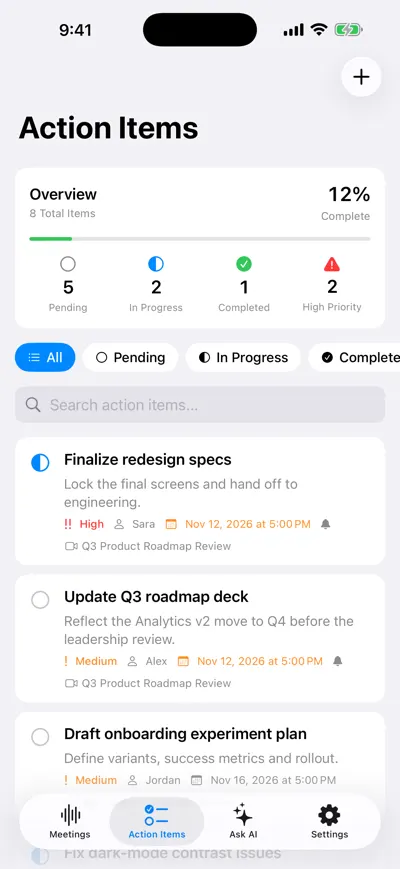
Commitments as tasks with due dates
Frequently asked questions
Let AI take the notes for you
AI Note Taker records and transcribes your meetings, then writes the summary, decisions and action items. Free to start, no install needed.