Transcription
In-Person Meeting Transcription: How to Record and Transcribe Any Room
Updated · 9 min read
To transcribe an in-person meeting, place one phone flat in the middle of the table, start a recording app that transcribes speech, and ask people to say their names early so the transcript can be labeled by speaker. Most of the accuracy comes from what you do before you press record — consent, placement and a 10-second test — so this guide covers the room setup first, then the meeting itself, then the cleanup.
Before the meeting: a 5-minute setup
In-person audio is harder than a video call. On Zoom every voice arrives through its own microphone; in a meeting room one device has to pick up everyone, at different distances, over the hum of the projector. These steps fix most of that before it happens.
Get consent
Tell people you are recording and why: “I’m recording so I can focus on the conversation instead of typing — I’ll share the notes afterwards. Anyone object?” Recording laws differ by country and state; some require every participant to agree. This is not legal advice, so check the rules that apply to you and your workplace policy, especially for HR, medical or legal conversations.
Put the phone in the middle of the table
Center it between the people who will talk most, lying flat with the screen up so the microphones at the bottom edge are not muffled by the table. Keep it at least an arm’s length from laptops (fans and keyboard clatter), the projector, air vents and the coffee pot. Do not put it on a pile of papers people will shuffle.
Charge it and silence it
A one-hour recording uses a noticeable chunk of battery, more with a live transcript running. Start above 50% or plug it in. Turn on Do Not Disturb so notifications, vibrations and incoming calls do not interrupt or buzz against the table.
Do a 10-second test
Before everyone arrives, record ten seconds while the person in the farthest seat says a sentence at normal volume. Play it back. If you cannot clearly hear them, move the phone closer to the middle or plan for a second device or external mic (see the table below).
Name the recording
Give it a title you will find later, like “Q3 roadmap review – 2026-11-11”. Ten seconds now saves scrolling through a list of “New Recording 14” next month.
Recording setups by room size
One phone handles more than most people expect, but not every room. Match the setup to the space:
| Situation | Device | Placement | Upgrade if needed |
|---|---|---|---|
| 1:1 at a desk or café table | One phone | Flat between you, roughly equal distance to both people | Rarely needed |
| 4–6 people around a table | One phone | Center of the table, screen up, away from laptops | A small USB‑C or Lightning tabletop mic if the far end sounds thin |
| Conference room, 10+ people | Phone plus an external omnidirectional conference mic | Mic in the center of the long table; phone near the main speaker | A second phone at the other end, or the room’s own audio system if it can record |
| Lecture hall or presentation | Phone or clip-on lavalier mic on the presenter | Close to the speaker, not in the audience | A wireless lav mic paired to the phone; repeat audience questions out loud |
| Noisy café or restaurant | Phone held closer, or a lav mic | Between the speakers, away from the espresso machine and speakers playing music | A quieter corner; if you can choose, choose the venue for sound |
For lectures and classes, there is a separate guide on transcribing lectures with tips for long recordings and note-taking alongside the audio.
During the meeting: habits that improve the transcript
- Say names early. Open with a quick round: “Alex, product. Sara, design. Jordan, engineering.” Speaker separation groups voices as Speaker 1, Speaker 2 and so on; hearing each person name themselves makes it easy to match voices to names later.
- Use names when you hand over. “Priya, what do you think?” tells both the room and the transcript who speaks next.
- One voice at a time. Overlapping speech is where every transcription tool fails. If two people start together, the facilitator can say “Jordan, then Priya” — it also makes the meeting better.
- Mark key moments out loud. Phrases like “Decision: we move Analytics v2 to Q4” or “Action item for Sara: final specs by July 12” stand out in the transcript and help AI summaries pick them up.
- Restate quiet comments. If someone at the far end mumbles, repeat the point: “So Ben’s suggestion is to pilot with ten customers first.”
- Keep the phone where it is. Picking it up to check something causes loud handling noise and changes the distance to every speaker.
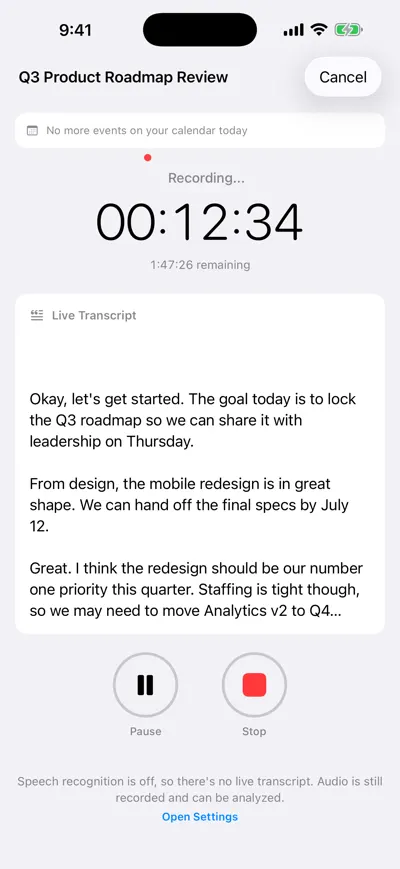
Live transcript while the meeting runs
After the meeting: clean up before you share
A raw transcript is about 90% of the way there. These five minutes make it trustworthy:
Post-meeting cleanup
- Rename speakers from “Speaker 1/2/3” to real names, using the introductions at the start.
- Search for people’s names, product names and acronyms the transcript may have misspelled (“Priya” as “Pria”, “OKRs” as “okay ours”) and fix them.
- Read the summary and check that every decision matches what was actually agreed.
- Check each action item has the right owner and due date — see how to write meeting action items.
- Spot-check any number, date or price in the summary against the audio.
- Send the notes within a few hours, while people still remember the meeting — the follow-up email guide has templates.
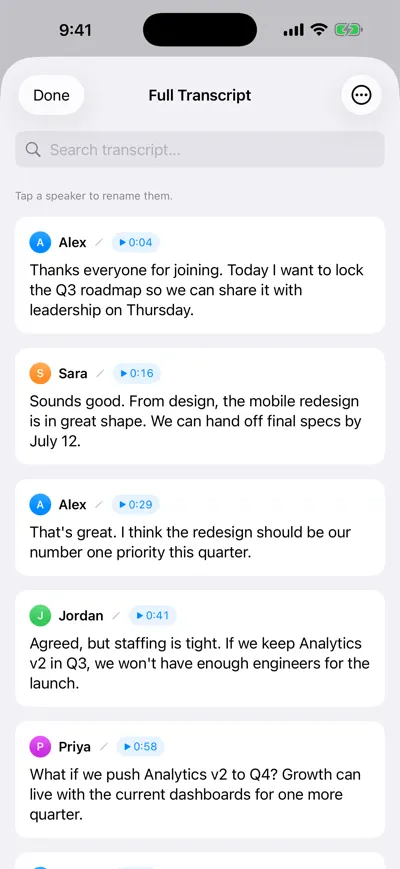
Rename speakers and jump to any line
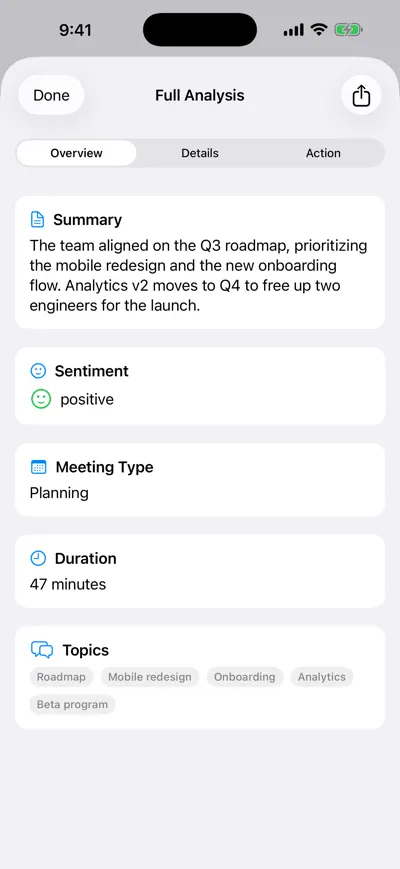
Check the summary against what was agreed
Troubleshooting common in-person audio problems
| Problem | Likely cause | Fix next time | Fix in this transcript |
|---|---|---|---|
| Quiet speakers missing or garbled | Too far from the phone, or facing away | Move the phone toward them, or add a second device or tabletop mic | Replay the timestamp and type the missing line by hand |
| Echo or “hollow” sound | Hard walls, glass and an empty table | Pick a smaller or furnished room; keep the phone off hard, resonant surfaces like a metal tray | Usually still readable — fix only the key passages |
| Overlapping talk merged into one line | Two or more people speaking at once | Ask for one voice at a time; the facilitator calls the order | Correct the speaker by hand where it matters |
| Wrong speaker labels | Similar voices, or someone moved seats | Do introductions; avoid passing the phone around | Rename speakers; fix individual lines by hand |
| Accents or jargon misheard | Unfamiliar names, acronyms and technical terms | Spell unusual names once in the intro; say acronyms in full the first time | Search and fix the recurring misspellings in one pass |
| Recording stopped partway | Battery, a phone call or storage | Charge, turn on Do Not Disturb, free up storage | Start a second recording and note the gap in the notes |
How to do it with AI Note Taker on iPhone
AI Note Taker records through your iPhone’s microphone, so it works for in-person meetings where there is no call for a bot to join. Here is the whole flow:
Install and sign in
Get the iPhone app and allow microphone access when asked. Speech recognition permission powers the live transcript; if it is off, audio is still recorded and can be analyzed later.
Start a recording
Tap record, give the meeting a name and set the phone flat in the center of the table. You see a timer and the transcript forming in real time. One recording can run up to two hours, and the app warns you before the limit.
Stop and let it process
When the meeting ends, tap Stop. The app produces a transcript separated by speaker, with timestamps you can tap to hear that moment.
Label speakers
Open the full transcript and tap a speaker to rename them. Search the transcript for names and terms that need fixing.
Review the AI analysis
Check the summary, sentiment, topics and action items with their due dates, then send a recap or ask questions about the meeting.
The free alternative: Voice Memos on iPhone
If you only need the words, you may not need a dedicated app. Since iOS 18, the built-in Voice Memos app can show a transcript of a recording on supported iPhones and languages: record as usual, open the memo and tap the transcript icon to read, search and copy the text. It is free, private to your device and already installed.
Voice Memos for in-person meetings
Pros
- Free and built in, nothing to install or sign up for
- Same microphone, so the placement advice above applies equally
- Searchable, copyable transcript
Cons
- No speaker labels — one continuous block of text, which is hard to follow with four or more people
- No meeting summary, decisions or action items; you write those yourself
- Transcription availability depends on your device, iOS version, region and language
A sensible rule: Voice Memos is fine for a 1:1 or a quick idea session. For group meetings where you need to know who said what and send a recap, a meeting tool saves real time. The voice memo transcription guide covers Voice Memos in more detail, and if you already have a recording from any source, see how to transcribe a meeting recording.
Frequently asked questions
Let AI take the notes for you
AI Note Taker records and transcribes your meetings, then writes the summary, decisions and action items. Free to start, no install needed.