Comparisons
AI Note Taker Without a Bot: How to Get Meeting Notes With No Bot Joining
Updated · 10 min read
An AI note taker without a bot records the conversation on your own device — your laptop’s audio, your phone’s microphone, or a recording file you import — instead of sending an AI “participant” into the call. You get the same transcript, summary and action items, but nobody has to admit a bot, and it works in person and in meetings you don’t host. The trade-off: because nothing announces itself, you are responsible for telling people they’re being recorded.
Bot vs. no bot: the two ways AI note takers capture audio
Bot-based note takers connect to your calendar and send a virtual attendee — usually named something like “Dana’s Notetaker” — into Zoom, Google Meet or Teams. It appears in the participant list, receives the call’s audio stream from the platform, and leaves when the meeting ends.
Botless note takers never join the meeting. They record from the device you’re already using: a desktop app that captures your computer’s audio, a browser or phone app that listens through the microphone, or a recording you import afterwards. To everyone else on the call, nothing changes.
| Bot joins the call | Records on your device (no bot) | |
|---|---|---|
| Consent visibility | High — the bot is in the participant list and many tools post a notice in chat | Low — nobody sees anything, so you must announce it |
| In-person meetings | No — there is no call to join | Yes — put a phone or laptop on the table |
| Meetings you don’t host | Depends — the host can deny or remove the bot from the waiting room | Yes — nothing needs to be admitted |
| Phone calls | Usually no | Yes, with a speakerphone or a built-in call recorder |
| Audio quality | Clean — audio comes straight from the platform | Good to great — depends on your mic, room and whether system audio is captured |
| Speaker labels | Often uses names from the participant list | Separates voices by sound; you may need to rename “Speaker 1” to a real name |
| Company policies | Increasingly blocked by IT or by external hosts | Not affected by bot bans (recording policies still apply) |
| Etiquette | Can feel intrusive, especially in small or sensitive calls | Invisible — which is only polite if you say you’re recording |
Neither approach is “better” in every case. If you run large recurring calls and your company approves a bot, the built-in announcement is genuinely useful. If you have client calls, interviews, in-person meetings, or you’ve been told “no bots” by a customer’s IT team, botless is the practical choice.
Why people want meeting notes without a bot
- External calls. Prospects and clients often deny unknown attendees in the waiting room, or remove them once they notice. A bot that gets kicked out captures nothing.
- IT restrictions. Many organizations now block third-party meeting bots by default, either in Zoom/Teams admin settings or by policy.
- Small and sensitive conversations. A bot in a one-on-one, an interview or a performance review changes how people talk.
- Meetings that aren’t calls. Workshops, site visits, coffee chats and classroom sessions have no meeting link for a bot to join.
How to take AI notes on Zoom, Google Meet or Teams without a bot
You have two routes for online calls. Use the first when you want notes from any meeting, including ones you don’t host. Use the second when the meeting is already being recorded by the platform.
Route 1: record on your own device during the call
Announce the recording
At the start, say something like: “I’m recording this on my end for notes so I don’t have to type — is everyone OK with that?” Wait for a yes. If someone objects, take notes by hand.
Choose how audio is captured
A desktop app that captures system audio will hear the other participants even through headphones. A browser or phone app records through the microphone, so switch from headphones to your computer speakers at a moderate volume, or the app will only hear your side.
Start recording before the conversation starts
Open the app, name the recording (“Acme renewal call — Nov 11”), and hit record a few seconds before people start talking. If you use a phone, set it next to the laptop speaker, not across the room.
Stop and check the transcript
When the call ends, stop the recording and skim the transcript. Rename speakers to real names so the summary and action items say “Priya will send the contract” instead of “Speaker 3”.
Turn it into notes and a follow-up
Generate the summary, check the decisions and action items, and send a recap the same day.
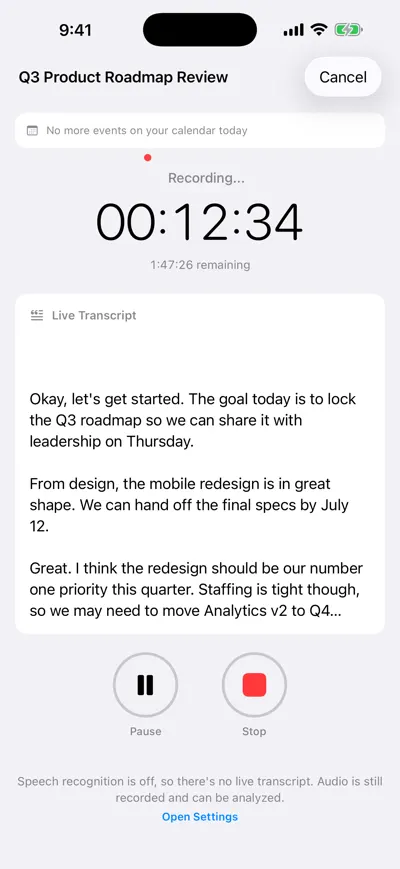
Recording on the device, no bot in the call
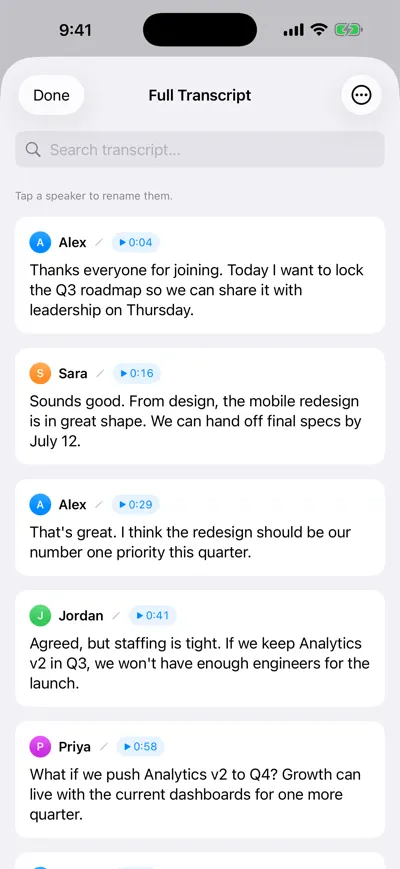
Speaker-labeled transcript with timestamps
Route 2: use the platform’s own recording, then import the file
Zoom, Google Meet and Microsoft Teams all have built-in recording, and their own recording and transcription notify participants that they’re on. This is still botless — no third-party attendee — but it usually needs the host’s permission and a plan that includes recording.
Record with the platform
As host (or with the host’s permission), click Record in Zoom, Meet or Teams. Participants see the platform’s recording indicator.
Find the file
Zoom local recordings save to a Zoom folder in Documents by default; Google Meet recordings go to the organizer’s Drive, in the “Google Meet” folder (older files sit in “Legacy Meet Recordings” inside it); Teams recordings typically live in OneDrive or SharePoint and are linked from the meeting chat.
Import it into your note taker
Upload the MP4 or M4A to a tool that accepts files. You get a transcript and summary without anyone having installed anything.
The full walkthrough, including where each platform stores recordings, is in how to record and transcribe a Zoom meeting. If you already have the file, see how to transcribe a meeting recording.
How to take AI notes in an in-person meeting
In-person meetings are where botless tools are the only option. A phone on the table does surprisingly well for a group of up to six to eight people in a quiet room.
Place the phone in the middle
Put it flat in the center of the table with the microphone (bottom edge) facing the group.
Silence it
Turn on Do Not Disturb so a notification or call doesn’t interrupt the recording.
Say you’re recording and name people
A quick round of “Hi, I’m Marcus from finance” at the start makes the speaker-labeled transcript much easier to fix later.
Record, then review
Stop when the meeting ends, rename speakers, and check the summary before sending it around.
For larger rooms, lecture halls and noisy settings, see how to transcribe an in-person meeting.
How to take AI notes on a phone call
Use a built-in call recorder if you have one
On iPhone with iOS 18.1 or later, you can record a phone or FaceTime audio call from the call screen. Both people hear an audio notice that the call is being recorded, and the recording is saved to Notes, with a transcript in supported regions and languages.
Or put the call on speaker and record on a second device
Put the call on speakerphone and record with a laptop or tablet next to it. This works on any phone and any calling app.
Import the audio for a summary
Export the recording and import it into your AI note taker to get a summary and action items you can search later.
For call-specific tips and the consent wording to use, see how to record phone call notes.
Botless AI note takers to consider
Facts below were checked on each provider’s official site as of November 2026. Plans change, so confirm before you buy.
| Tool | How it captures audio | Platforms | Free option |
|---|---|---|---|
| Granola | Uses your computer’s audio, so no bot joins | Mac, Windows, iOS, Android | Free Basic plan with 30 days of meeting history; Business from $14 per user per month |
| AI Note Taker | Records through your device’s microphone, or imports an audio/video file | iPhone app and web app | Unlimited recordings and transcripts, 1 free AI analysis; Pro is $19.99/month or $99.99/year |
| Zoom, Meet, Teams built-in tools | Platform recording and transcription (no third-party attendee) | Inside each platform | Depends on your plan and admin settings |
| iPhone call recording | Records phone and FaceTime audio calls in the Phone app | iPhone with iOS 18.1 or later | Built in; transcripts in select regions and languages |
Granola is a strong pick if you live in a desktop calendar of back-to-back video calls: capturing system audio means it hears everyone even when you wear headphones, and it lets you type your own notes alongside. Built-in platform tools are the easiest choice when you host and your company already pays for them, and they show participants a clear recording notice. For a broader comparison, including bot-based tools, see the best AI note takers.
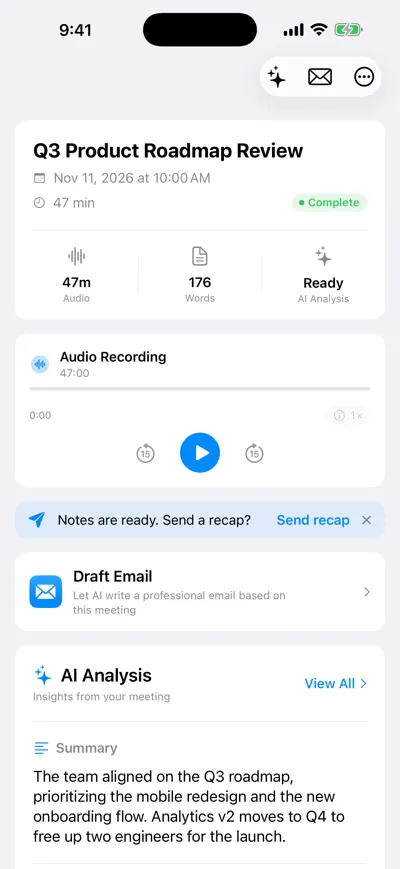
Notes, audio and recap in one place
Consent: botless means you do the announcing
A bot in the participant list is a built-in disclosure. Recording on your own device removes it, so the responsibility moves to you. This is general information, not legal advice: recording laws vary by country and state. In the US, some states require only one party’s consent while others, such as California, generally require everyone’s; the EU’s GDPR and workplace rules add their own requirements. When participants are in different places, the strictest rule may apply. If you record regularly for work, check your company’s policy or ask a lawyer.
Before every botless recording
- Say you’re recording at the start, so the announcement is in the recording itself.
- Explain why (“so I can focus instead of typing”) and who will see the notes.
- Give people a real way to say no, and stop recording if anyone does.
- Mention it in the calendar invite for recurring or external meetings.
- Don’t record confidential, HR or legal conversations without explicit approval.
- Share the notes with attendees afterwards — it builds trust in the habit.
Live, at the start of the call:
"Quick note before we start — I'm recording this on my end so I can get an accurate transcript and send everyone a summary afterwards. Is everyone OK with that?"

In the calendar invite:
"Heads up: I record our meetings on my own device (no bot joins) to produce notes and action items. Reply or tell me at the start if you'd prefer I didn't."
Once you have notes, send them out the same day with a meeting recap email so everyone sees exactly what was captured.
Frequently asked questions
Let AI take the notes for you
AI Note Taker records and transcribes your meetings, then writes the summary, decisions and action items. Free to start, no install needed.