Transcription
How to Transcribe Lectures (and Actually Study From Them)
Updated · 10 min read
To transcribe a lecture, get permission to record, sit near the front with your phone on the desk facing the lecturer, and run a lecture transcription app that turns speech into text as you go (or import the recording afterwards). The transcript is only half the job, though: the students who benefit are the ones who turn it into questions and flashcards within a day, so this guide covers the setup, the recording and the study workflow.
First: are you allowed to record the lecture?
The lecturer usually owns the material, and many universities have a written policy on recording. A typical rule: recording for your own personal study is allowed (sometimes with permission), while sharing, uploading or selling recordings is not.
- Look up your school’s policy. Search your university site for “lecture recording policy” and check the syllabus.
- Ask the lecturer directly. A two-line email works: “Would you mind if I record your lectures on my phone for my own revision? I won’t share the recordings.” Most say yes.
- Talk to disability services if it applies to you. If a learning difference, hearing impairment, ADHD or another condition makes live note-taking hard, the accessibility office can often approve recording as a formal accommodation.
- Be careful in seminars. Recording classmates is more sensitive than recording a lecturer. Ask the group, or pause during discussion.
How to record lectures on iPhone with clear audio
In a lecture hall the speaker is 10–20 meters away, the room echoes, and 200 people are typing and coughing. Accuracy depends more on where your phone is than on the app.
Sit near the front, or near a speaker
The first three rows are ideal. If the lecturer uses a microphone, the next best spot is close to one of the room’s loudspeakers, which often sound clearer than the lecturer’s natural voice from mid-hall. Avoid sitting under air vents or next to the door.
Place the phone flat on the desk, bottom edge toward the lecturer
The iPhone’s main microphones are on the bottom edge. Lay it screen up with that edge facing the front, not under your notebook, and away from your laptop keyboard — typing is the loudest sound in the room from 30 centimeters away.
Turn on Do Not Disturb
Notifications can buzz against the desk and an incoming call can interrupt the recording. Turn on Do Not Disturb or a Focus mode for class before you hit record.
Start with enough battery and storage
A 90-minute lecture with a live transcript uses a real chunk of battery: start above 50% or bring a power bank. Keep a few hundred megabytes free, and title the recording with course, lecture number and date (“BIO 201 – L14 – cell signalling”).
Plan for long sessions
Some apps cap a single recording. In AI Note Taker on iPhone, one recording can run for up to 2 hours: you get a warning five minutes before, Part 1 is saved, and you can start “Part 2” with one tap.
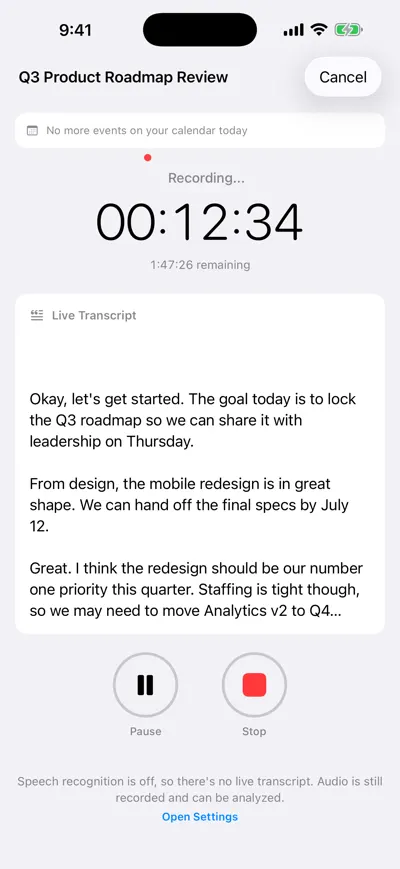
Live transcript with time remaining
When a student asks a question from the back, jot a timestamp (“~42:00, question about receptor types”) so you can check that part later. More room setups: how to transcribe an in-person meeting.
Lecture transcription methods compared
| Method | Best for | Strengths | Weaknesses |
|---|---|---|---|
| Handwriting | Math, diagrams, conceptual subjects | Forces you to summarize, which helps memory; no tech to fail | You miss details when the lecturer goes fast; no searchable record |
| Typing on a laptop | Text-heavy subjects, fast typists | Fast, searchable, easy to reorganize | Tempting to transcribe word for word instead of thinking; distractions |
| Voice Memos + built-in transcript | Free, occasional recording | Already on your iPhone; recent iOS versions can show a transcript | Just a recording and raw text: no summary, no Q&A, little structure |
| AI note taker app | Long, dense lectures; revision | Full transcript plus summary, topics and the ability to ask questions about the lecture | Needs permission to record; quality drops with distance and echo; check language support |
| School’s lecture capture | Courses that already record | Official recording, often with slides and captions | Not every course uses it; recordings may expire or only be streamable |
For most students the best combination is brief notes in class (headings, diagrams, what the lecturer stressed) plus a recording for the details.
A study workflow that turns transcripts into learning
A 90-minute lecture produces around 12,000 words of transcript. Rereading it is slow and, according to learning research, one of the least effective ways to study. What works is retrieval practice (testing yourself) and spacing (reviewing over several days):
Record, and keep light notes
Write only headings, diagrams and anything “on the exam”. Mark confusing moments with “?” and the time.
Skim the AI summary the same day
Within a few hours, read the summary and topic list. If a topic surprises you, that is a gap — open the transcript at that point.
Turn key points into questions
For each main point, write a question you could be asked: not “Krebs cycle” but “What are the net products of one turn of the Krebs cycle?” Aim for 10–15 questions per lecture.
Ask AI about the parts you did not get
Instead of scrubbing through audio, ask: “Explain the difference between the two receptor types from today’s lecture,” or “What example did the lecturer use for opportunity cost?” Then check the answer against that part of the transcript.
Make flashcards
Put your questions into Anki, Quizlet or index cards, one fact per card. The prompt below drafts them from a transcript; you edit them.
Review in spaced sessions before the exam
Quiz yourself after 1 day, 3 days, 1 week and 3 weeks. Before the exam, ask across all lectures (“Which lectures covered enzyme kinetics?”) to find what to revisit.
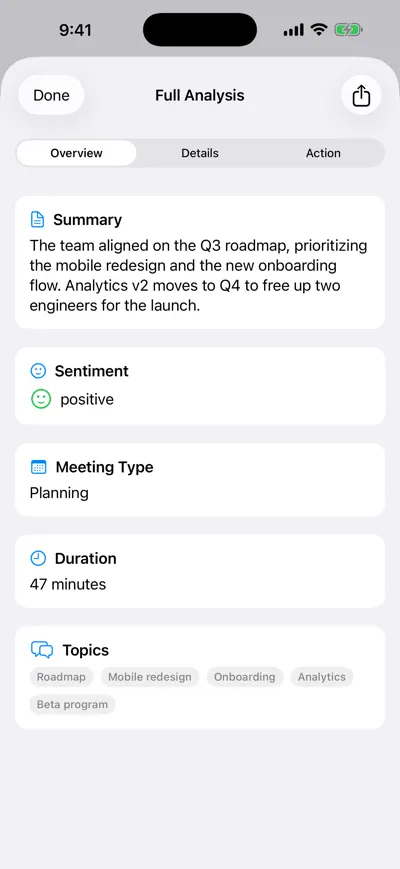
Summary and topics
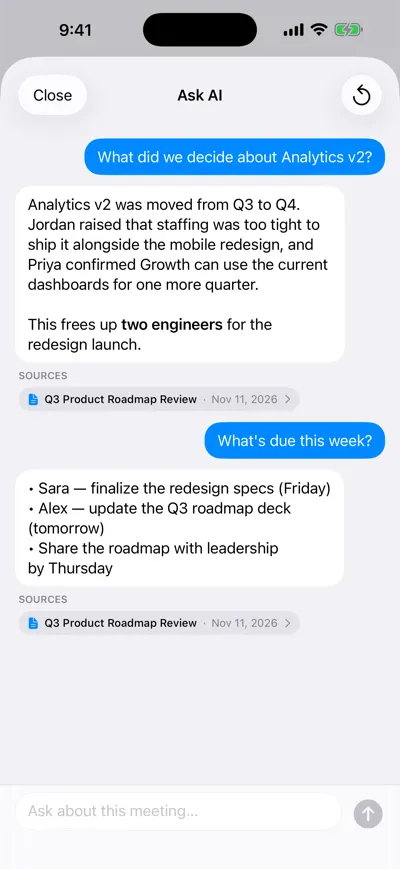
Ask AI, with sources
Turn any lecture transcript into study notes
Have a transcript from any source? Paste it into ChatGPT, Claude, Gemini or similar with this prompt (split very long transcripts in half).
You are helping me study. Below is a transcript of a university lecture.
Course: [course name]   Lecture: [number and title]   Exam format: [e.g. multiple choice + short answer]

Using ONLY what is in the transcript:
1. Write a 5-sentence summary of the lecture.
2. List the key concepts as headings, each with a 2–3 sentence explanation in plain language and any example the lecturer gave.
3. List every definition, formula, date or named study the lecturer mentioned.
4. Write 15 flashcards in the format "Q: ... | A: ..." — one fact per card, mixing recall questions and "why/how" questions.
5. List anything that seems unclear, contradictory or cut off in the transcript so I can check it with my notes or the lecturer.

Do not add facts that are not in the transcript. If something is ambiguous, say so.

TRANSCRIPT:
[paste transcript here]
Check the output against the transcript: a misheard term (“mitosis” vs. “meiosis”) makes a wrong flashcard, which is worse than none.
Cornell notes template for recorded lectures
Cornell notes split the page into notes, cues and a summary. Take sparse notes in class, then fill the cue column with questions from the transcript.
COURSE: [ECON 101]        LECTURE: [7 — Opportunity cost]        DATE: [2026-11-11]
Recording: [title / time range]

CUES / QUESTIONS            | NOTES
(fill in after class)       | (during class + from transcript)
----------------------------|--------------------------------------------
What is opportunity cost?   | Value of the next-best alternative given up.
                            | Example: studying 3 hrs vs. working shift
                            | = $45 of wages given up (~18:30)
Why is it not just $ cost?  | Includes time, effort, other options.
                            |
? Check with transcript     | Marginal vs. average cost — lost the thread
                            | around 41:00
----------------------------|--------------------------------------------
SUMMARY (3–4 sentences, in your own words, written within 24 hours):
[...]

REVIEW LOG: Day 1 [ ]  Day 3 [ ]  Week 1 [ ]  Week 3 [ ]
For training sessions and webinars at work, swap the cue column for “What will I do with this?” and pull out action items as you would from a meeting.
Transcribing recorded online lectures, videos and webinars
Don’t hold your phone up to your laptop speakers. Get the file and transcribe it directly; the audio is far cleaner.
- Download the recording if your course allows it. Platforms like Canvas, Moodle and Panopto often allow downloads; if downloading is disabled, it is usually deliberate. Existing captions may also be good enough for the prompt above.
- For live webinars or Zoom classes, use the platform’s own recording if the host enables it, or ask the host for the file. Our Zoom recording guide covers the options.
- Import the file into a transcription app. AI Note Taker imports audio (MP3, M4A, WAV, AAC, WebM, OGG) and video (MP4, MOV, M4V) files up to 500 MB on iPhone and the web. A 90-minute lecture video is often bigger than that; extract the audio, or export at a lower resolution, first.
For more on turning existing files into text, see how to transcribe a meeting recording and how to transcribe a voice memo on iPhone.
Language support and accuracy
Clear speech near the microphone transcribes very accurately; a lecturer pacing the stage, echo or unmiked student questions produce gaps, especially on technical terms and names.
- Language: AI Note Taker currently supports English for transcription and AI analysis, with more languages planned. If your lectures are in another language, check language support before you rely on any app for a whole semester.
- Technical terms are the most common errors. Fix them in your notes, not just in your head.
- Equations and diagrams are not in the audio. Photograph the board or slides and note the time.
Before each recorded lecture
- Permission confirmed (school policy, lecturer, or accommodation letter)
- Seat in the first few rows or near a loudspeaker
- Phone flat on the desk, bottom edge toward the lecturer, away from the keyboard
- Do Not Disturb on
- Battery above 50% and free storage available
- Recording titled with course, lecture number and date
- Plan for a second part if the session runs over 2 hours
Frequently asked questions
Let AI take the notes for you
AI Note Taker records and transcribes your meetings, then writes the summary, decisions and action items. Free to start, no install needed.