Transcription
How to Transcribe a Google Meet: Every Method Compared (2026)
Updated · 10 min read
To transcribe a Google Meet call, click Meeting tools › Transcribe › Start transcription during the meeting; Meet saves the transcript as a Google Doc in the organizer’s Drive. That built-in option only works on certain paid Google Workspace plans, though. If you are on a free Gmail account, a guest in someone else’s meeting, or your admin has turned it off, you still have other routes: Gemini’s “Take notes for me”, live captions, a bot note taker, or recording on your own device. This guide covers each one, with the exact menus and who can use it.
Six ways to transcribe Google Meet, at a glance
Facts below come from Google’s Meet Help Center and each provider’s site, checked in November 2026. Plan names and inclusions change often, so if a menu item is missing, your plan or your admin settings are the usual reason.
| Method | Cost | Who can use it | Bot visible? | What you get |
|---|---|---|---|---|
| Meet Transcripts | Included in eligible Workspace plans | Host, or people in the host’s organization on Business Standard/Plus, Enterprise, Education Plus, Workspace Individual | No, but everyone sees a “transcribing” notice | Google Doc with speaker names and timestamps, in the organizer’s Drive |
| Meet recording | Included in eligible Workspace plans and Google One 2 TB+ | Host, co-hosts, and (by setting) people in the host’s organization | No, but a recording notice is shown | Video file in the organizer’s Drive; no text |
| Gemini “Take notes for me” | Eligible Workspace edition or a Google AI plan | Usually the host or co-hosts | No, but a notes icon and notice are shown | Google Doc with a summary, decisions and next steps |
| Live captions | Free | Anyone in the call | No | On-screen text only; nothing saved |
| Bot note taker (Otter, Fireflies, Fathom…) | Free tiers with limits; paid plans per user | Anyone, if the host admits the bot | Yes, as a participant | Transcript, summary and action items in the vendor’s app |
| Record on your own device (AI Note Taker) | Free unlimited transcription; AI analysis on Pro | Anyone, any plan, any role | No; you announce it yourself | Speaker-labeled transcript, summary, action items, recap email |
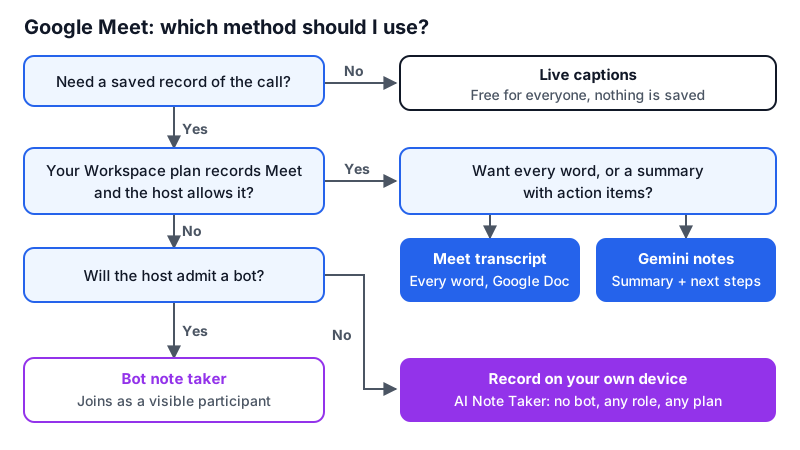
Method 1: Turn on Google Meet’s built-in transcripts
Meet Transcripts is the cleanest choice if you have it: the text comes straight from the call’s audio and each line is labeled with the speaker’s Google account name. It works on a computer and on Android. Supported languages are English, French, German, Italian, Japanese, Korean, Portuguese and Spanish.
Join or start the meeting on a computer
Transcripts can be started from a computer (and Android). If you joined from the iPhone app, switch to a laptop to start it.
Open Meeting tools › Transcribe
Click Meeting tools at the bottom right, then Transcribe, then Start transcription. Confirm in the pop-up. Everyone in the call gets a notice that the meeting is being transcribed.
Stop it when you are done
Open Meeting tools › Transcribing › Stop transcription. If you don’t, it stops when everyone leaves. You can’t pause; stopping and restarting creates a separate transcript file each time.
Find the Google Doc
The transcript lands in the organizer’s Google Drive, in the Google Meet folder, inside a sub-folder for that meeting. The host, co-hosts and whoever started it get an email link, and the Doc is attached to the Calendar event.
Two limits are worth knowing. Transcripts include spoken words only; chat messages are saved only with a recording. And in meetings with more than 200 invitees, only the host, co-hosts and the person who started it can open the transcript.
Method 2: Record the Meet, then transcribe the video
Recording is available on more plans than Transcripts: Google lists Business Standard and Plus, Essentials, the Enterprise editions, Education Plus (staff), Teaching and Learning Upgrade, Workspace Individual and Google One subscribers with 2 TB or more. Your admin also has to allow it. A recording is useful when you need the video, or when your plan records but doesn’t transcribe.
Start recording
Click Meeting tools › Recording, optionally pick a caption language, then Start recording › Start. Participants are notified, and anyone joining later sees a warning.
Stop recording
Click Meeting tools › Recording › Stop recording and confirm. Recording also stops automatically when everyone leaves, or after 8 hours.
Download the file from Drive
Open the email link or go to the organizer’s Drive › Google Meet › the meeting’s folder. Open the video and choose Download.
Turn the video into text
Import the file into a transcription tool. In AI Note Taker, drop it into Import a recording (MP4 and most audio formats, up to 500 MB) to get a transcript split by speaker plus a summary. Details are in how to transcribe a meeting recording.
Who can press Record depends on the host: the host and co-hosts always can; other people in the host’s organization can when Host Management is off. People outside the organization, and anyone on the mobile app or dialed in by phone, can see that recording is on but can’t control it.
Method 3: Gemini “Take notes for me”
Gemini in Meet doesn’t give you a word-for-word transcript; it writes notes. The document has a Quick notes tab (a short summary with action items) and a Full notes tab (summary, decisions, action items and details). It needs an eligible Workspace edition or a Google AI plan, and it works best for meetings between 15 minutes and 8 hours.
Start it in the meeting
After joining, click Take notes for me at the top right, adjust settings if you want, then Start taking notes. When host controls are on, only hosts and co-hosts can start or stop it.
Or switch it on in advance
When creating or editing the Calendar event, go to Video call options › Meeting records and tick Take notes with Gemini. Notes then start without anyone remembering to click.
Choose who gets the notes
The organizer picks: all invited guests (including external), invited guests in the organization, or hosts and co-hosts only. “Invited guests” means people on the invite, not everyone who joined.
Open the Doc after the call
It is saved next to recordings and transcripts in the organizer’s Drive and attached to the Calendar event.
Gemini notes are strong for a quick “what did we decide” overview. If you need exact quotes, for an interview or a contract discussion, run Transcripts alongside it.
Method 4: Live captions (free, but not saved)
Anyone in a Meet call, including free Gmail users, can click the CC (Turn on captions) button in the bottom bar. Captions help you follow a fast speaker or a noisy line, but they vanish when the meeting ends. Copying them by hand is not a realistic transcript; if you need text afterwards, pick one of the other methods.
Method 5: Use a meeting bot
Bot-based note takers such as Otter, Fireflies and Fathom connect to your Google Calendar and send a virtual participant into each Meet. They work on any Google account, and the bot’s presence tells everyone the call is being recorded. Fathom and Otter have generous free tiers for video calls; Fireflies is strong on integrations. See the best AI note takers for a fuller comparison.
Connect your calendar
Sign up with the vendor and give it access to Google Calendar. Choose whether the bot joins all meetings, only ones you host, or only when invited.
Admit the bot
When it knocks, the host has to let it in, unless the meeting allows people to join without asking. If you aren’t the host, warn them first.
Read the notes in the vendor’s app
The transcript and summary appear there after the call; most tools also email a recap.
The catch: hosts can deny or remove the bot, many companies block unknown bots, and a bot in a two-person call can feel heavy. That is the main reason people look for an AI note taker without a bot.
Method 6: Transcribe Google Meet on your own device, with no bot
Recording from your own device works whatever your plan, whether or not you host, and without anyone admitting anything. AI Note Taker records through the microphone of your browser or iPhone, so the setup matters: the microphone has to hear the other participants as well as you.
Tell everyone you are recording
Nothing on screen announces it, so say it at the start: “I’m recording on my side for notes, is that OK?” Stop if anyone objects.
Use speakers, not headphones
AI Note Taker records the microphone, not your computer’s audio output, so play the call through your laptop speakers at a moderate volume. With headphones on, it only hears you.
Start a recording
In the web app, click New Recording, name it (“Design review, Nov 12”) and start. Or open the iPhone app and place the phone next to the laptop speaker. The transcript builds live.
Stop, rename speakers, review
When the call ends, stop recording. Rename “Speaker 1” and “Speaker 2” to real names, then check the summary, decisions and action items.
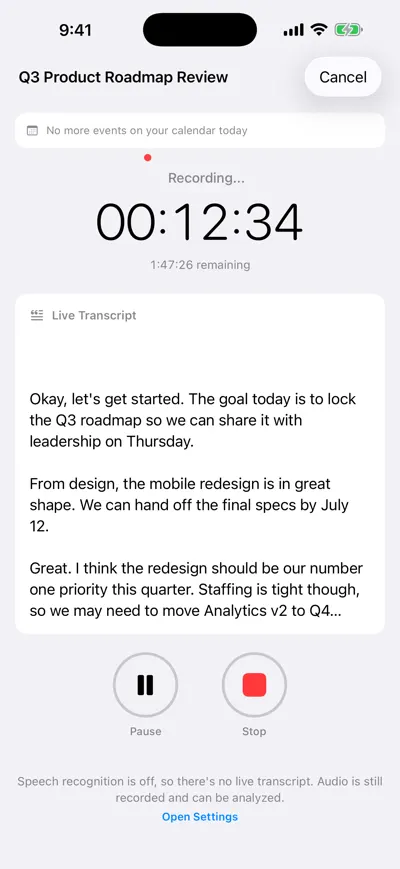
Recording next to the laptop, no bot in the Meet
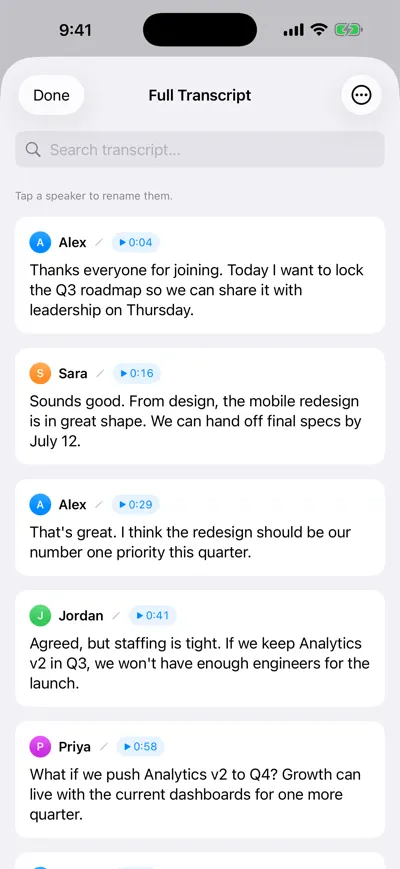
Transcript with speaker labels
Worked example: same meeting, three outputs
Take a 30-minute weekly sync where Priya says “Let’s move the launch to the 20th, Marco will update the release notes.” Here is roughly what each method leaves you with:
- Meet Transcripts: “Priya Shah: Let’s move the launch to the 20th, Marco will update the release notes.” Exact words with a timestamp, inside a long Doc you skim or search.
- Gemini notes: a “Decisions” line saying the launch moves to the 20th, and a next step assigned to Marco. Short, but no exact wording.
- AI Note Taker: the same sentence under “Speaker 2” until you rename it Priya, plus a summary, a decision and an action item “Update release notes, owner Marco” you can turn into a follow-up email.
Troubleshooting: why can’t I transcribe my Google Meet?
- No Transcribe option in Meeting tools: your edition doesn’t include Transcripts (Business Starter and free Gmail don’t), your admin turned it off, or you joined from iPhone.
- Record is greyed out: you aren’t the host or a co-host and Host Management is on, or you are outside the host’s organization. Ask the host to record or promote you to co-host.
- Can’t find the file: look in the organizer’s Drive, not yours. Check the Google Meet folder and the “Legacy Meet Recordings” folder inside it, and the Calendar event’s attachments.
- Wrong language in the transcript: Transcripts and Gemini notes support one language per meeting; set it before starting.
- Device recording only has your voice: you are on headphones. Switch to speakers, or record on a phone placed by the laptop.
For Zoom and Teams, see how to record and transcribe a Zoom meeting and how to transcribe a Microsoft Teams meeting. Whatever you use, recording laws vary by place; this is not legal advice, so read is it legal to record a meeting if you are unsure.
Frequently asked questions
Let AI take the notes for you
AI Note Taker records and transcribes your meetings, then writes the summary, decisions and action items. Free to start, no install needed.