Transcription
How to Transcribe a Microsoft Teams Meeting (Licenses, Policies, Files)
Updated · 9 min read
To transcribe a Microsoft Teams meeting, open More actions › Record and transcribe in the meeting controls and choose Start transcription (or Record, which also starts the transcript). The transcript is saved to the organizer’s OneDrive and shows up in the meeting chat’s Recap tab, where you can download it as .docx or .vtt. Whether you see that button depends on three things: your license, your admin’s meeting policy, and whether you belong to the organizer’s organization. This guide explains each, plus what to do when the answer is “no”.
Can you transcribe this Teams meeting? Check these first
Most “the Transcribe button is missing” problems come from one of the rows below. Facts come from Microsoft Support pages, checked in November 2026.
| Participant | Start or stop | See live | Open afterwards | Download afterwards |
|---|---|---|---|---|
| Organizer | Yes | Yes | Yes | Yes |
| Same organization | Yes | Yes | Yes | Only if the organizer allows it |
| Another organization (tenant) | No | Yes | No | No |
| Anonymous or dial-in | No | No | No | No |
- License: organizer and recorder both need a qualifying license, and an admin must allow cloud recording and transcription in the Teams meeting policy.
- Personal accounts: Microsoft lists recording for Microsoft 365 Personal, Family and Premium subscribers using Teams with a personal account; we could not find a saved-transcript option for personal accounts. Teams Free users can use live captions.
- Federated users (another company’s Teams) can record calls but not meetings.
- Organizer restrictions: with Teams Premium or Copilot, the organizer can set Who can record and transcribe to organizers only, organizers and presenters, or no one. Find it under Calendar › the event › View event › Options › Recording and transcription.
Method 1: Transcribe a Microsoft Teams meeting with the built-in tool
Live transcription runs in Teams for desktop (Windows or Mac) and the browser. On mobile you can read the transcript only after the meeting.
Open More actions
In the meeting controls, select More actions (the three dots), then Record and transcribe › Start transcription. In older versions the item is simply labeled Transcribe.
Confirm the spoken language
Pick the language people are actually speaking and select Confirm. A wrong language is the most common reason for a garbled transcript; changing it later updates the transcript for everyone.
Everyone is notified
A banner tells all participants that transcription has started. Depending on where people are, you may also need their explicit consent; say it out loud.
Stop it
Open More actions, select Record and transcribe, then Stop transcription. It also stops when everyone leaves.
To avoid forgetting, the organizer can set this up before the meeting: open the event, go to Options › Recording and transcription, and turn on automatic transcription. In 2026 Microsoft added a Transcribe only choice there, so you can transcribe automatically without recording video. If Who can record and transcribe is set to No one, all automatic options are forced off.
Method 2: Record the meeting (transcript included)
Start recording
Select More actions › Record and transcribe › Start recording. Choose the spoken language and what to record, then Confirm. For a smaller file, pick Audio only in the “Choose what to record” dropdown.
Let it run
Recording continues if the person who started it leaves. If someone stays connected, it splits into a new file every four hours until the last person leaves.
Stop
Open More actions › Record and transcribe and choose Stop recording (ends the video; transcription keeps running until you stop it too) or Stop transcription for the text. Organizers, co-organizers and presenters can stop and restart it.
On mobile
Tap More options › Start recording, and More options › Stop recording to end it.
Recordings don’t capture whiteboards, annotations, shared notes or more than four video streams at once, so if the meeting is mostly a whiteboard session, write the decisions down too.
Where Teams saves recordings and transcripts
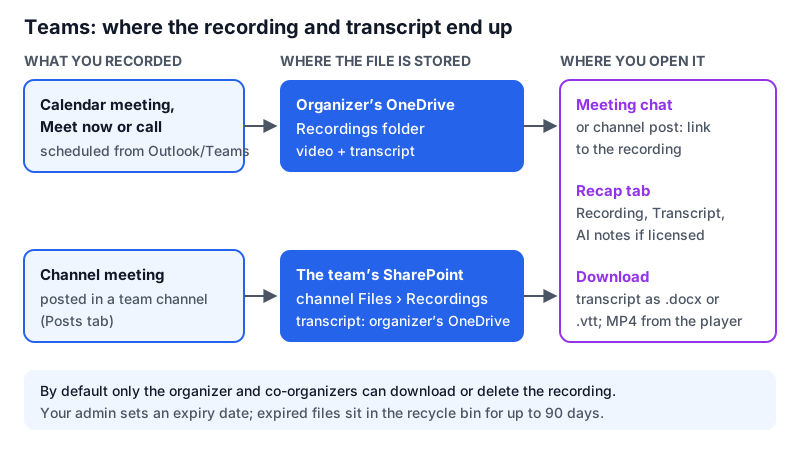
- Scheduled meetings, Meet now and calls: the video goes to the organizer’s OneDrive for Business, in a Recordings folder. If you weren’t the organizer, it isn’t in your OneDrive.
- Channel meetings: the video goes to the team’s SharePoint site, in the channel’s Files under Recordings.
- Transcripts: stored with the organizer’s OneDrive and reachable from the meeting chat and the Recap tab until the organizer deletes them.
- If upload fails: Teams may hold the recording temporarily for up to 21 days before deleting it permanently, so download it promptly from the chat.
- Expiry: admins set a default expiry date. Organizers and co-organizers can change or remove it on the recording’s player page; after expiry the owner has up to 90 days to restore it from the recycle bin.
How to download the transcript
Open the meeting chat
Select Chat in Teams and open the past meeting’s chat (or open the event from Calendar).
Go to Recap › Transcript
The Recap tab shows the recording, the transcript and, if your organization is licensed, AI notes.
Choose the format
Select the dropdown next to Download and pick .docx (readable document with names and timestamps) or .vtt (subtitle format for video players and other tools).
Mobile users can’t download the transcript directly; someone with the file can drop it into the meeting chat for them.
Method 3: AI notes with Teams Premium or Copilot
The transcript is raw text. For a summary, Microsoft offers two paid add-ons on top of a business license: Teams Premium, which adds intelligent recap (AI-generated notes, suggested tasks, and markers for when your name was mentioned), and Microsoft 365 Copilot, which adds recap plus the ability to ask questions about the meeting while it is happening or afterwards. Both rely on the meeting being transcribed. At the time of writing (November 2026), Teams Premium has been listed at about $10 per user per month and Copilot at about $30, billed annually; Microsoft has been shifting which features sit in which license during 2026, so confirm with your admin before buying.
Live translated transcripts and captions also need Teams Premium. Only the original-language transcript is stored.
Method 4: Live captions (no file)
Anyone, including Teams Free users, can follow along with captions: More actions › Language and speech › Show live captions. Set Caption settings › Language settings › Meeting spoken language if the captions look wrong. Captions aren’t saved when the meeting ends, so they are an accessibility aid, not a transcript.
Method 5: A bot note taker
Tools such as Otter, Fireflies and Fathom can join Teams meetings as an extra participant. They work even when you aren’t in the organizer’s tenant, but the bot usually waits in the lobby until someone admits it, and many IT departments block or remove unknown bots. They are a good fit when you organize recurring external calls and your company has approved the tool; see the best AI note takers for a comparison.
Method 6: Bot-free recording on your own device
When you are a guest in another company’s Teams meeting, on a personal account, or simply don’t want an extra attendee, record from your side. Nothing joins the call, so you must tell people you are recording.
Ask first
Say “I’d like to record on my end for notes, is everyone OK with that?” If the organizer has switched recording off on purpose, respect that.
Put the call on speakers
AI Note Taker records through your microphone, so headphones mean it only hears you. Use laptop speakers at a moderate volume, or place your iPhone next to them.
Record in AI Note Taker
Click New Recording in the web app (or open the iPhone app), name it and start. The transcript builds as people talk.
Review and send
Rename speakers, check the action items, and send the recap email it drafts. Afterwards you can ask questions about the transcript across all your meetings.
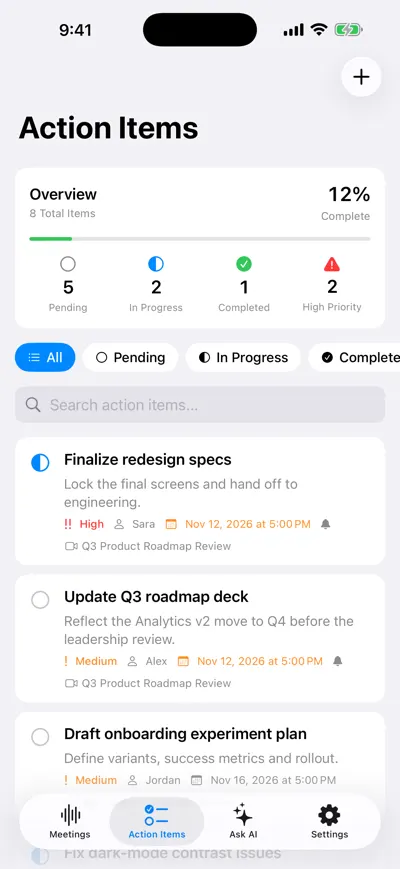
Action items pulled from the call
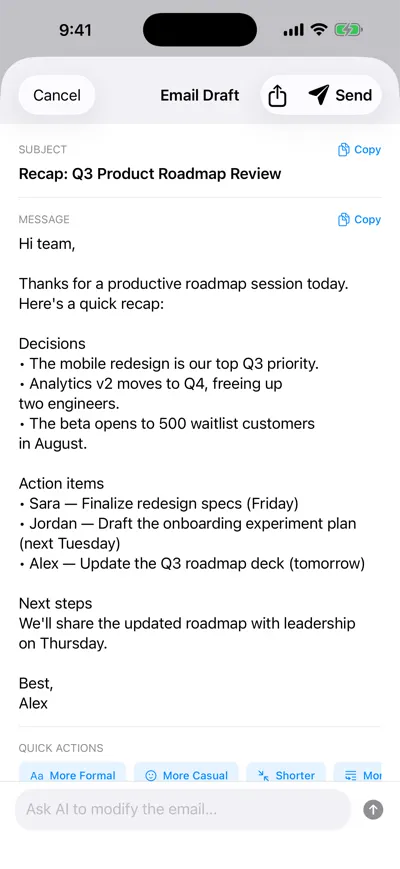
Recap email drafted for you
Already have a Teams MP4? If you can download it from OneDrive or SharePoint (organizers and co-organizers can by default), import it into AI Note Taker (up to 500 MB). It doesn’t import .docx or .vtt transcripts, only audio and video. Note that AI Note Taker currently transcribes English only.
Teams transcription methods compared
| Method | Cost | Who can use it | Bot visible? | Output |
|---|---|---|---|---|
| Teams transcription | Included with qualifying business licenses | Organizer and same-org users, if IT allows | No; banner notifies everyone | .docx/.vtt transcript in Recap |
| Teams recording | Included with qualifying business licenses | Organizer and same-org users, if IT allows | No; banner notifies everyone | MP4 in OneDrive or SharePoint, plus transcript |
| Intelligent recap / Copilot | Teams Premium or Copilot add-on | Licensed users in the organization | No | AI notes, tasks, Q&A |
| Live captions | Free | Anyone in the meeting | No | On-screen text only |
| Bot note taker | Free tiers with limits, or paid per user | Anyone whose bot is admitted | Yes | Transcript and summary in the vendor’s app |
| AI Note Taker on your device | Free unlimited transcription; AI analysis on Pro | Anyone, including guests | No; you announce it | Speaker-labeled transcript, summary, action items, recap email |
For the same steps on other platforms, see how to transcribe Google Meet, how to transcribe a Webex meeting and the overview in how to record and transcribe a Zoom meeting.
Troubleshooting a missing Transcribe button
Work down this list
- Are you signed in with your work or school account, not a personal one?
- Is the meeting organized by someone in your organization? External meetings hide the option.
- Are you in a scheduled meeting rather than a one-to-one call where policies differ?
- Has the organizer limited “Who can record and transcribe” in meeting options?
- Has your admin enabled transcription in the Teams meeting policy? Ask IT, quoting the meeting date.
- Still nothing? Record on your own device with consent, or ask the organizer to transcribe and share the file.
Frequently asked questions
Let AI take the notes for you
AI Note Taker records and transcribes your meetings, then writes the summary, decisions and action items. Free to start, no install needed.